
Download QCTools – Free Video Quality Control & Analysis Tool
Overview
QCTools (Quality Control Tools for Video) is a free, open‑source multimedia application created by MediaArea.net to help archivists, conservators, and video professionals analyze digitized video files. In today’s world, analog video material is constantly being transferred to digital formats such as AVI, MKV, MOV, and MP4. The conversion process, however, can introduce subtle errors—frame drops, audio‑video sync problems, or corrupted data—that are difficult to spot by eye alone. QCTools solves that problem by offering a suite of audiovisual analytics, filtering algorithms, and visualizations that automatically detect compromises and corruption in both analog‑derived and born‑digital video streams.
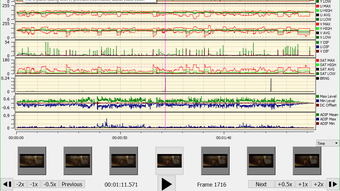
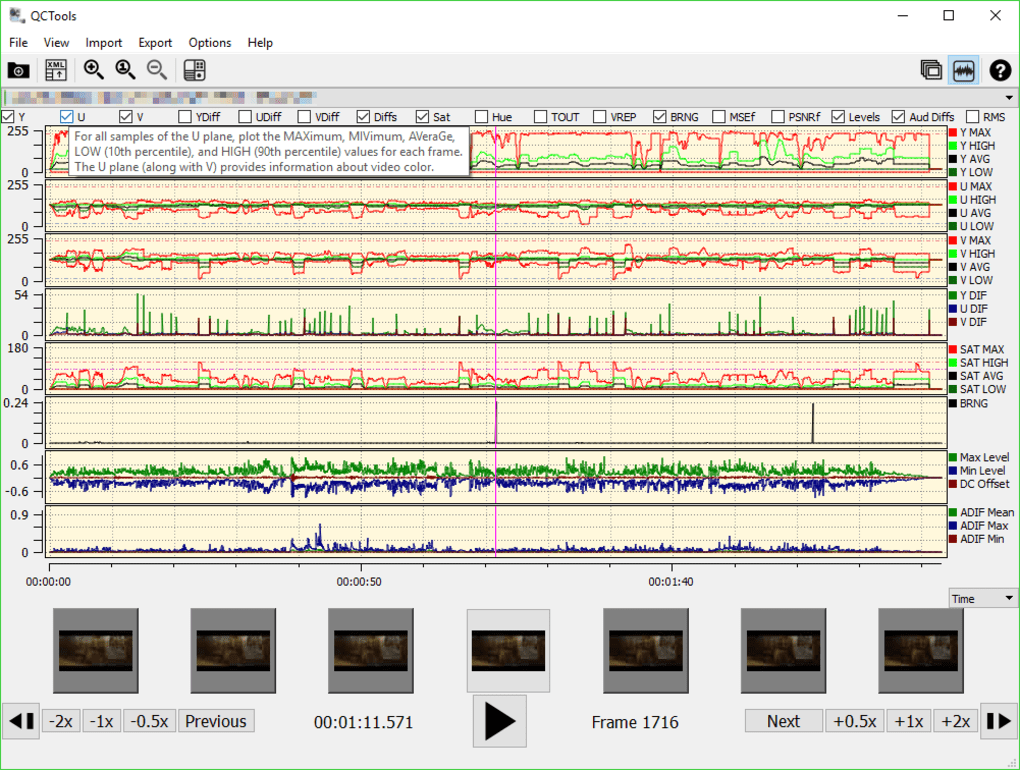
Despite its powerful backend, QCTools adopts a clean, functional user interface that makes loading and processing files straightforward. Drag‑and‑drop support lets you queue dozens of videos in seconds, while two distinct viewing modes—File List and Graphs Layout—provide both numeric summaries and graphical representations of key parameters such as luminance, chroma, audio levels, and bit‑rate stability. The tool also integrates with Blackmagic capture hardware, leveraging FFmpeg to record and export footage in QuickTime format. This combination of deep technical analysis and a no‑frills workflow makes QCTools a go‑to solution for anyone looking to safeguard the integrity of their video collections.
In this review we’ll explore the core features, walk through the installation and usage process, examine system compatibility, weigh the pros and cons, answer the most common questions, and finally give you a clear call‑to‑action on why you should download QCTools today.
Core Features that Set QCTools Apart
- Multi‑format support: Handles AVI, MKV, MOV, MP4 and many other container formats, ensuring you can analyze almost any video file you encounter.
- Drag‑and‑drop batch processing: Load dozens of files at once, saving time on large archival projects.
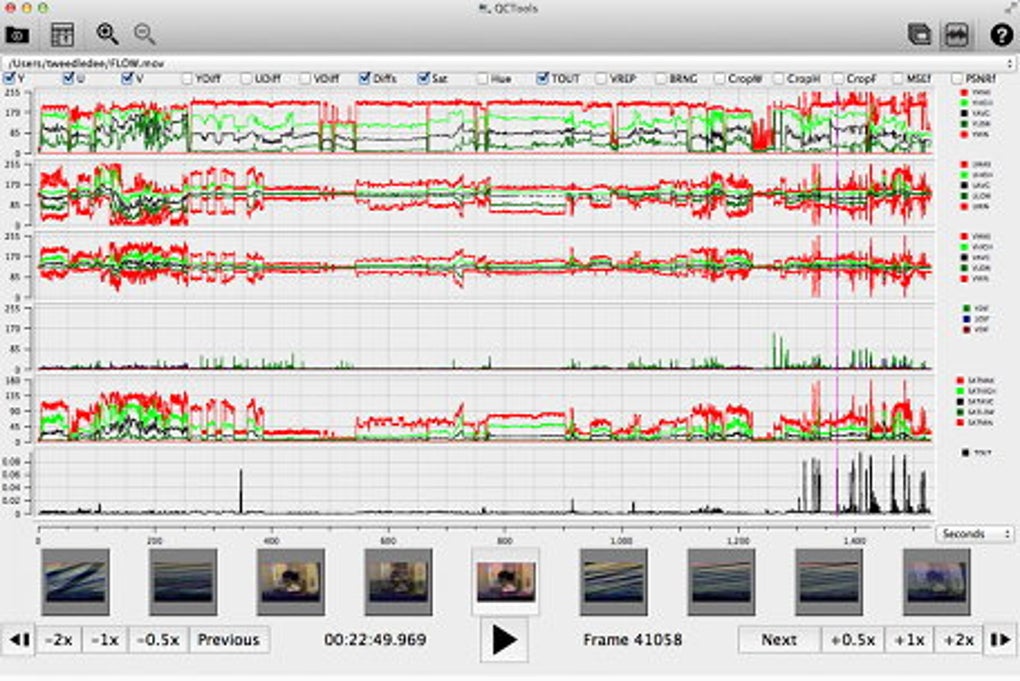
- Two analysis views: The File List view shows numeric parameter values per file, while the Graphs Layout visualizes trends over time for each metric.
- Comprehensive metric suite: Includes luminance, chroma, audio RMS, frame‑rate consistency, bit‑rate variance, and more, giving a holistic picture of video health.
- Blackmagic Design integration: Direct capture from Blackmagic devices, using FFmpeg under the hood for reliable recording and QuickTime export.
- Open‑source & free: No licensing fees, with the source code available for custom extensions or community contributions.
- Cross‑platform GUI: Built on Qt, the interface works consistently across Windows, macOS, and Linux environments.
- Exportable reports: Generate CSV or plain‑text summaries for documentation, quality‑control logs, or further statistical analysis.
- Lightweight installer: A streamlined setup that completes in seconds without bundling unnecessary third‑party software.
These features combine to create a robust quality‑control pipeline that can be used by both seasoned video preservation specialists and hobbyists who simply want to ensure their home movies are free from hidden defects. Because QCTools leans on FFmpeg—a battle‑tested multimedia framework—its analysis is both accurate and fast, even on modest hardware. Moreover, the open‑source nature means the community can contribute new filters or visualizations, keeping the tool current as new video standards emerge.
Installation, Usage, Compatibility, and Real‑World Pros & Cons
Getting QCTools Up and Running
Downloading QCTools is a straightforward process. Head to the official MediaArea.net download page, select the appropriate installer for your operating system, and click “Download.” Windows users receive an .exe installer, macOS users get a .dmg bundle, and Linux distributions offer a portable .tar.gz archive or native package via repositories. Once the file is saved, run the installer and follow the on‑screen prompts; the process typically finishes within two minutes because the installer is intentionally minimal.
After installation, launch QCTools. The main window presents a simple toolbar with “Add Files,” “Remove,” and “Start Analysis” buttons. You can drag video files directly onto the window or use the “Add Files” dialog to browse your directories. When you press “Start Analysis,” QCTools begins scanning each file, automatically populating the File List view with key metrics. Switch to the Graphs Layout to watch real‑time plots of luminance spikes, audio peaks, or bitrate fluctuations. If you have a Blackmagic capture device connected, an additional “Capture” tab appears, allowing you to record live video and immediately run the same quality checks on the captured footage.
System Compatibility (itemprop="operatingSystem")
QCTools runs on the three major desktop platforms:
- Windows 10/11 (64‑bit): Requires the Visual C++ Redistributable, which the installer adds automatically.
- macOS 10.15 (Catalina) and later: Fully compatible with Apple Silicon and Intel processors.
- Linux (Ubuntu, Debian, Fedora, Arch): Available as a pre‑compiled package or source build; depends on Qt5/6 and FFmpeg libraries.
Pros & Cons
- Pros:
- Free and open‑source – no hidden costs.
- Supports a wide range of video containers and codecs.
- Drag‑and‑drop batch analysis saves time on large projects.
- Graphical visualizations make hidden errors easy to spot.
- Integrates with professional capture hardware (Blackmagic).
- Lightweight installer and low system footprint.
- Exportable reports aid documentation and compliance.
- Cons:
- Steep learning curve for users unfamiliar with video‑quality metrics.
- No built‑in video repair; QCTools only flags problems.
- Limited help documentation; relies on community forums.
- UI, while functional, feels dated compared to commercial alternatives.
- Real‑time analysis of very large files can be slow on older CPUs.
Overall, the advantages of QCTools far outweigh its drawbacks, especially for organizations that prioritize transparency and cost‑effectiveness over polished aesthetics. The tool’s ability to surface hidden corruption before archival storage begins can save countless hours of re‑digitization later.
Frequently Asked Questions
Is QCTools truly free, or are there hidden fees?
QCTools is 100 % free and open‑source. You can download, use, and even modify the source code without paying any license fees. All features, including Blackmagic integration, are available at no cost.
Can QCTools repair corrupted video files?
No. QCTools is a diagnostic tool that identifies errors, drops, and inconsistencies. It does not contain video‑repair functionality, but it can guide you to the problematic segments so you can re‑capture or use dedicated repair software.
What hardware is required for real‑time analysis?
A modern multi‑core CPU (Intel i5/i7, AMD Ryzen 5/7) with at least 4 GB RAM is recommended for smooth batch processing. For high‑resolution (4K) footage, a faster CPU and more RAM will improve performance. No special GPU is required.
Does QCTools work on Linux distributions other than Ubuntu?
Yes. QCTools is packaged for Fedora, Debian, Arch Linux, and can be compiled from source for virtually any Linux distribution that supports Qt and FFmpeg.
How often is QCTools updated, and are updates secure?
The development team releases updates several times a year, addressing bug fixes, new codec support, and UI tweaks. All releases are signed and distributed through the official MediaArea.net site, ensuring a secure download process.
Conclusion & Call‑to‑Action
If you are responsible for preserving video heritage, maintaining broadcast archives, or simply want to guarantee that your digitized movies are free from hidden damage, QCTools offers a powerful, cost‑free solution. Its comprehensive metric suite, batch‑processing capabilities, and compatibility with Windows, macOS, and Linux make it an indispensable addition to any video‑quality workflow. While the interface may feel utilitarian and the learning curve can be steep, the value gained from early error detection far outweighs these minor inconveniences.
Ready to safeguard your video collections? Download QCTools now and start analyzing your files with confidence. The tool is free, secure, and backed by an active open‑source community—everything you need to keep your footage pristine for years to come.







